How to Print Passport Photos at Home
Printing passport photos at home can save you time and money. Here's everything you need to know about printing 2×2 passport photos yourself.
What You'll Need
- A color printer (inkjet or laser)
- Photo paper (4×6 inches recommended)
- Your digital passport photo file
- Scissors or a paper cutter
- A ruler for precise cutting
Step 1: Prepare Your Photo
Before printing, make sure your photo:
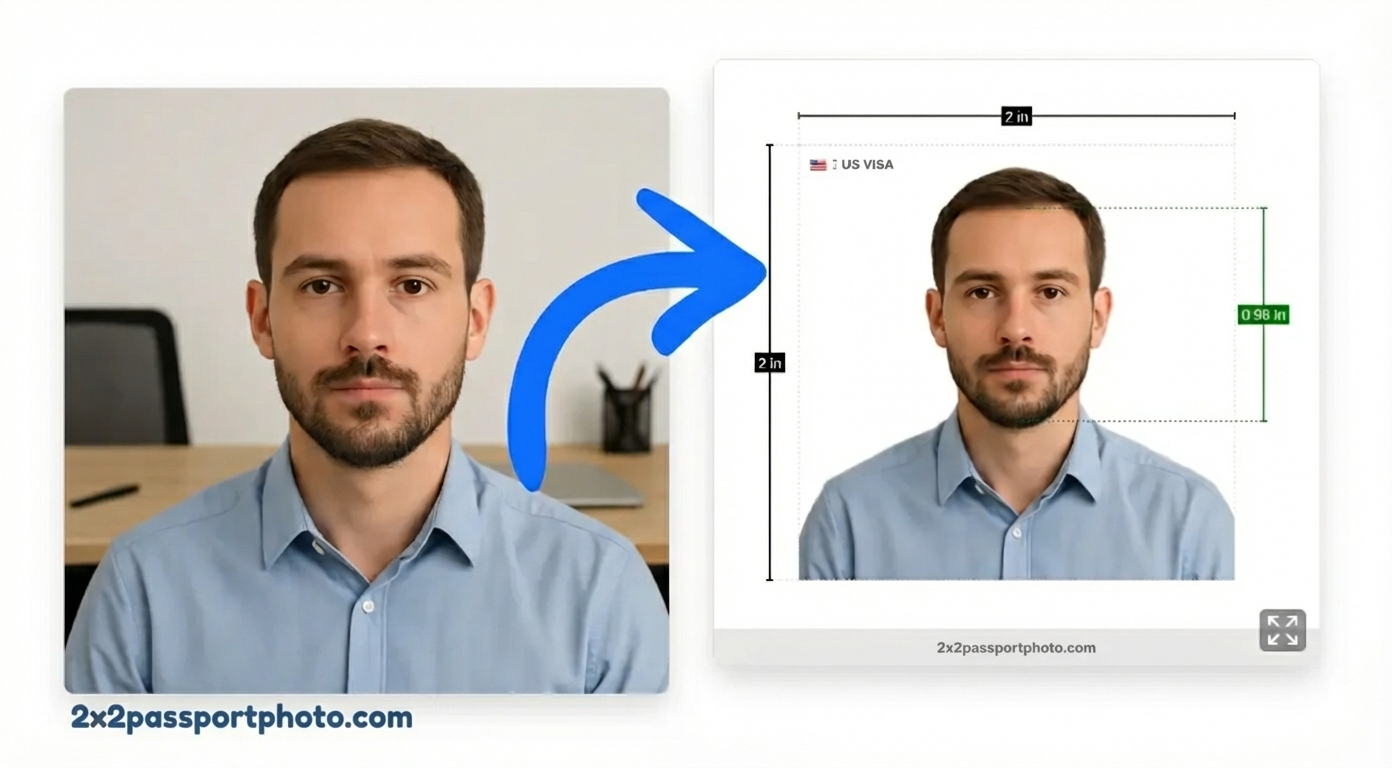
- Is exactly 2×2 inches (600×600 pixels at 300 DPI)
- Has a pure white background
- Meets all passport requirements
- Is saved in high quality (JPG or PNG)
Step 2: Create a 4×6 Print Sheet
The easiest way to print passport photos is on a 4×6 inch sheet:
- Our tool can generate a 4×6 sheet with multiple 2×2 photos
- This is the standard size for most photo printers
- You can fit 2-4 passport photos on one 4×6 sheet
Step 3: Printer Settings
Configure your printer for best results:
- Paper type: Select "Photo Paper" or "Premium Photo Paper"
- Quality: Choose "Best" or "High Quality"
- DPI: Set to 300 DPI for sharp prints
- Color mode: Full color (not grayscale)
Step 4: Print the Sheet
- Load 4×6 photo paper into your printer
- Print a test page first to check alignment
- Ensure the photos are centered and not cut off
- Print on matte or glossy photo paper (both work)
Step 5: Cut the Photos
Use sharp scissors or a paper cutter:
- Measure exactly 2×2 inches
- Cut straight lines (use a ruler as a guide)
- Make sure corners are square
- Trim carefully to avoid white borders
Alternative: Print at a Store
If you don't have a printer, you can:
- Upload your 4×6 sheet to an online printing service
- Print at Walgreens, CVS, or Walmart photo centers
- Use FedEx Office or Staples printing services
- Most stores charge $0.15-$0.50 per 4×6 print
Tips for Best Results
- Use high-quality photo paper (not regular printer paper)
- Print at 300 DPI for professional quality
- Check printer alignment before printing multiple sheets
- Store printed photos in a protective sleeve
- Don't fold or crease the photos
Common Printing Mistakes
- Wrong paper: Regular paper won't work—use photo paper
- Low DPI: Photos printed at low resolution look blurry
- Wrong size: Make sure photos are exactly 2×2 inches
- Poor cutting: Uneven cuts can cause rejection
- Damaged photos: Handle carefully to avoid creases
With the right setup, printing passport photos at home is simple and cost-effective.